Run clients that can't have a Prilet account
Add a client whose procurement rules rule out a vendor login as a managed client, and run its hours, invoices and payments through Prilet while its people stay informed by email.

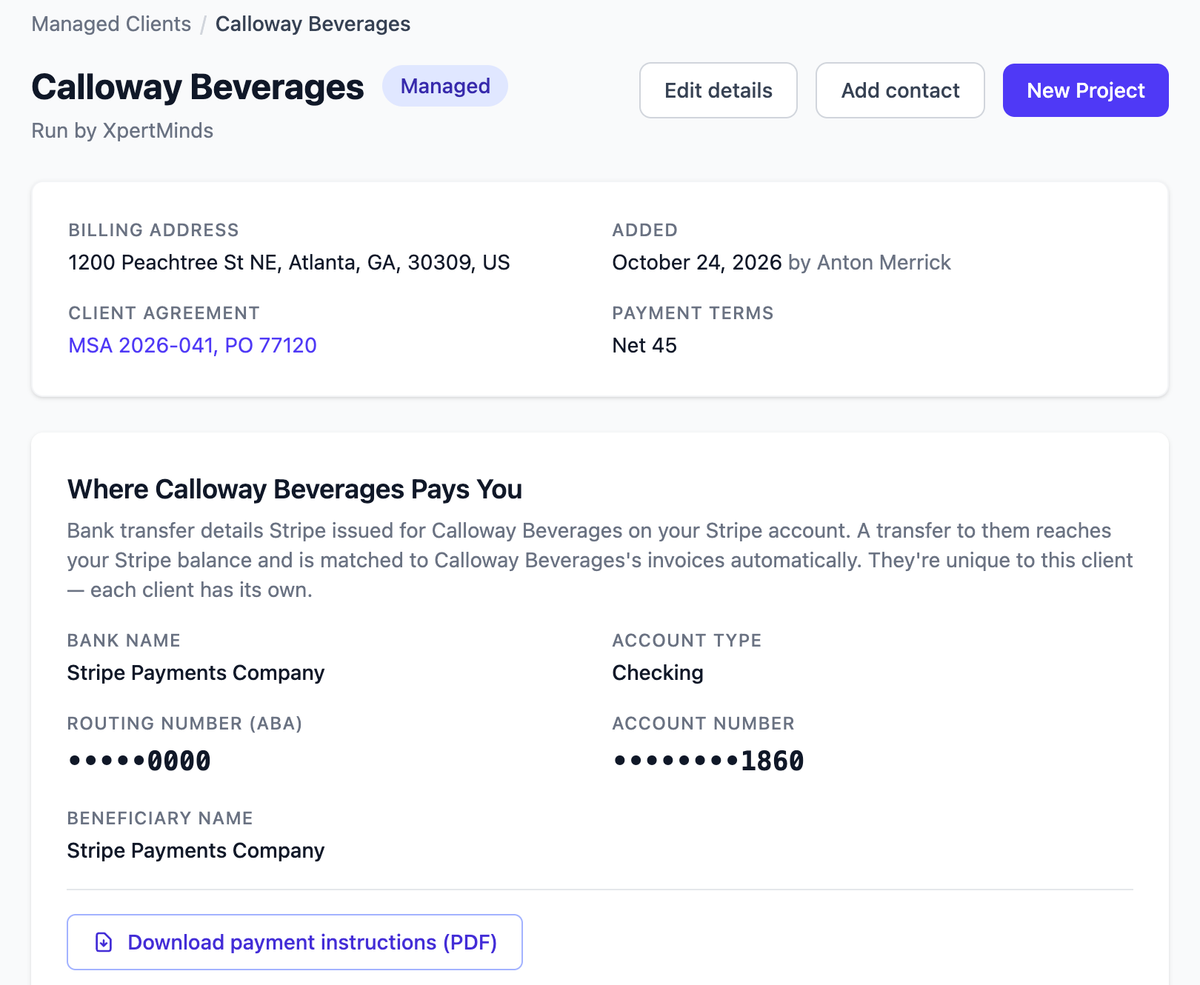
Every firm has a client like this. The work is good, the relationship is fine, and then procurement explains that nobody outside the company may create an account in a vendor's software. So that client stays out of Prilet. Hours go in a spreadsheet, invoices get built by hand, and approvals are chased over email, all while every other client runs through the system. The client was never going to log in, and asking again wasn't going to change that.
Managed clients are for exactly this. You add the client yourself, run its side of the work from your own account, and its people still see the hours and invoices and can push back on them. You'll find it under Companies you work with, on the Managed Clients tab. It's available on Solo Pro and Agency, and your payout setup needs to be finished first.
Adding one takes about what you'd expect: the client's name and billing address, its first contact, and the terms. That means payment terms, invoice cadence, and the reference for whatever the client signed with you, such as "MSA 2026-041, PO 77120", along with any documents you want kept alongside. The reference stays on the client's page, so the paperwork you already hold is the paperwork the work points back to.
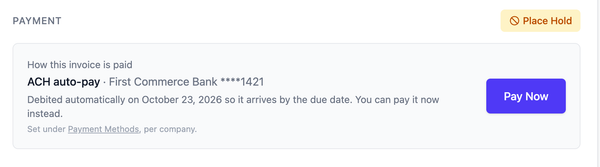
The bank details come with it. From the moment you add the client, Prilet issues account details unique to that client, and you can download a payment instructions PDF to send to their accounts payable team. That lets AP set you up as a vendor before the first invoice exists, which is usually the slow part. The client pays by bank transfer into those details, and each payment is matched to its invoices automatically. Invoices for a managed client say to pay by bank transfer to those same details.
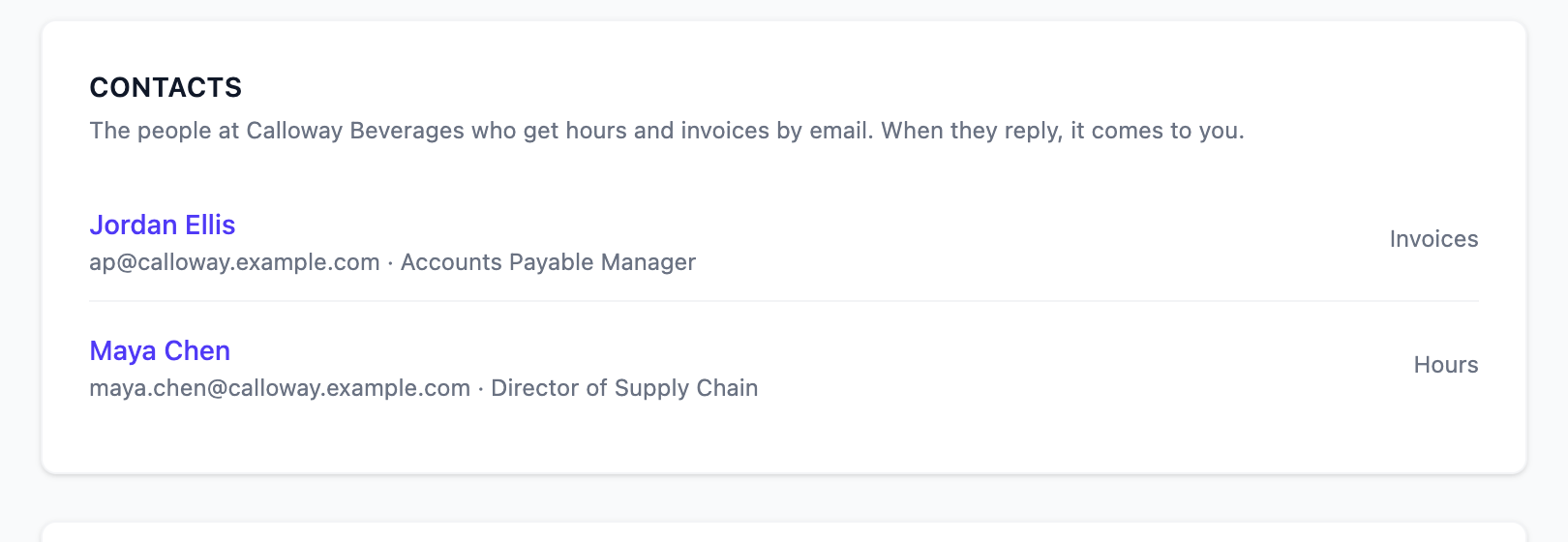
The client's people are contacts rather than users. Each one either hears about hours, receives invoices, or both. Hours contacts get the weekly summaries; invoice contacts get the invoices and the reminders. It all arrives by email, and when someone replies, the reply comes to you.
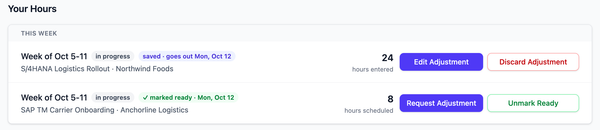
A reply is where the old spreadsheet routine used to fall apart, so it's worth saying how it plays out. Hours run as they do for any client: each week is filled in and summarised, and there's a short window to adjust. If a contact writes back that something's off, you answer it from the week page. You can approve or reject the adjustment, or reopen the week. An adjustment nobody answers approves itself when the window closes, same as with any other client.
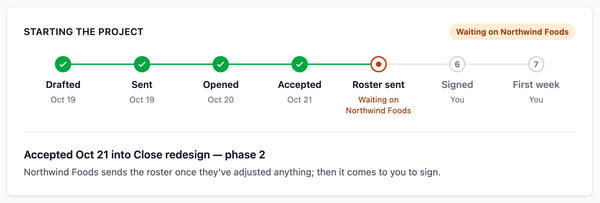
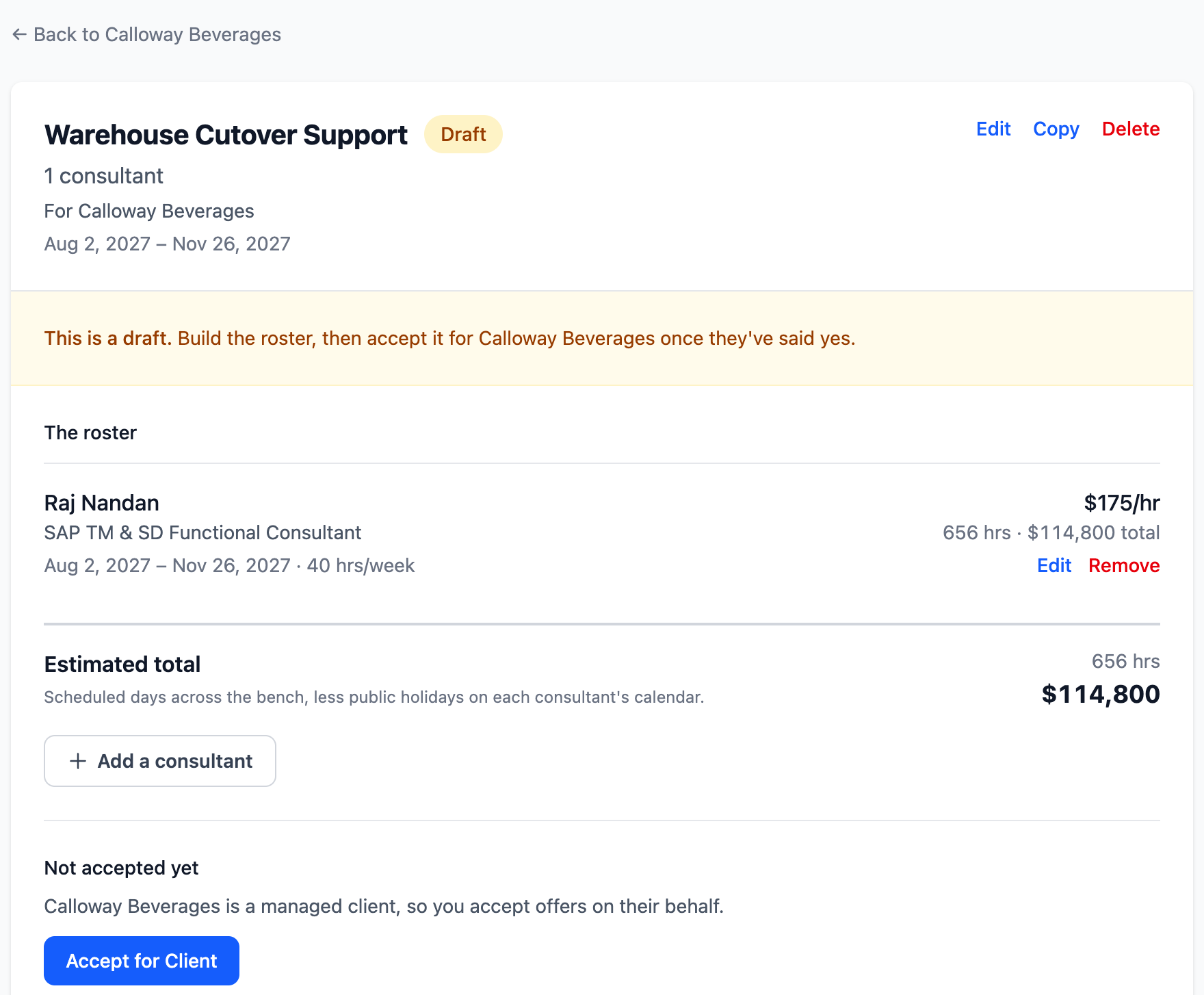
Starting the work is short. On the client's page, choose New Project, give it a title, reference and dates, add the consultants and their rates, and choose Accept for Client. You can do the same with Add Assignments on one of the client's existing projects, and an offer written to the client the ordinary way shows Accept for Client where Send would be, since there's nobody to send it to. You're accepting on the client's behalf, against the MSA or PO you already hold, and Prilet records exactly that: that your firm accepted it for the client, under that reference. It doesn't record a client signature, because there isn't one.
Since you're running the client's side, things that would normally wait on the client's approval apply straight away. You set the payment terms, the invoice cadence and the end dates directly. If one of the consultants is a subcontractor, their part goes live as soon as they accept their assignment, with no second step from you. Each firm runs its own managed clients, so the record is yours alone to keep. The Help Center walks through setting one up.
Also new
You can now add the client's PO or SOW number to an offer. It becomes the reference on the project the client opens from the offer, ready to print on every invoice. The client can still change it.
When a client accepts an offer into a new project, they now name who manages it. It defaults to the person accepting, so nobody has to reassign it afterwards.
Pointing a new offer at an engagement you're already running now shows that project on the form: when it runs and who is on it, with each person's role, dates, hours and rate. You can match the offer to the engagement without opening the project in another tab.
If you subcontract for other firms, you now propose the arrangement yourself. Under Subcontracting, choose New Proposal, pick the prime and the consultant, name the rate you'll work for, and sign; it's live once the prime accepts, and you can withdraw it until they answer. It used to take an offer from you, a request built from it, and your approval of that request. You don't have to wait to be invited, either: Invite a Prime asks a firm you'd like to work for to connect, on any plan, Solo Sub included.